Projectrustwindowsopen-sourceEnglishTürkçe
WinKillSwitch: a process manager for Windows, drawn in glass
I wanted to see what runs on my PC, keep the apps I care about in groups, and one day close an app so that it stays closed. WinKillSwitch is that tool. It is in alpha, it is native, and every pixel of it is drawn on the GPU.

7 min read
 Project · Rust · Windows · Open source
A process manager for Windows, drawn in glass
I wanted to see what runs on my PC, keep the apps I care about in groups, and one day close an app so that it stays closed. WinKillSwitch is that tool. It is in alpha, it is native, and every pixel of it is drawn on the GPU.
The short version and all the links
- WinKillSwitch is a process manager for Windows 10 and 11, written in Rust and drawn on the GPU with the Rune UI framework: glass panels, spring animations, six palettes in light and dark.
- It refreshes every 1.5 seconds and shows CPU, memory, disk, GPU and network per process, as a list or a tree, with a quick palette on Ctrl+Shift+K.
- Working today: process groups, memory and disk cleaners, "Why is my PC slow?", who is using this file, a startup inventory, CPU and memory limits, rule packs and new process alerts.
- Not yet: ending processes and PauseSwitch's autostart changes are in the interface but do nothing in this build, and the app says so.
- One portable
.exe, MIT licensed, 16 releases from v0.1.0 to v0.4.0.
- Websitewinkillswitch.vercel.app
- DownloadWinKillSwitch.exe
- SourceGitHub repo
- VersionsAll releases
- NotesRelease notes
- AgentsAgent setup guide
- UIRune
- LicenseMIT
Closing an app is not the same as stopping it
On Windows, ending one process rarely ends an app. There are child processes, helpers from the same install folder, an entry that starts it at sign in, sometimes a service or a scheduled task. Close the window and parts of it are still there; restart and the rest comes back.
That is the goal the name points at: shut an app down completely, related processes and auto starts included, and keep it down until I open it again myself. To get there I needed a good process manager first, so that is what I built first. The kill switch itself is the part that is not done yet, and I come back to it below.
Watching what runs
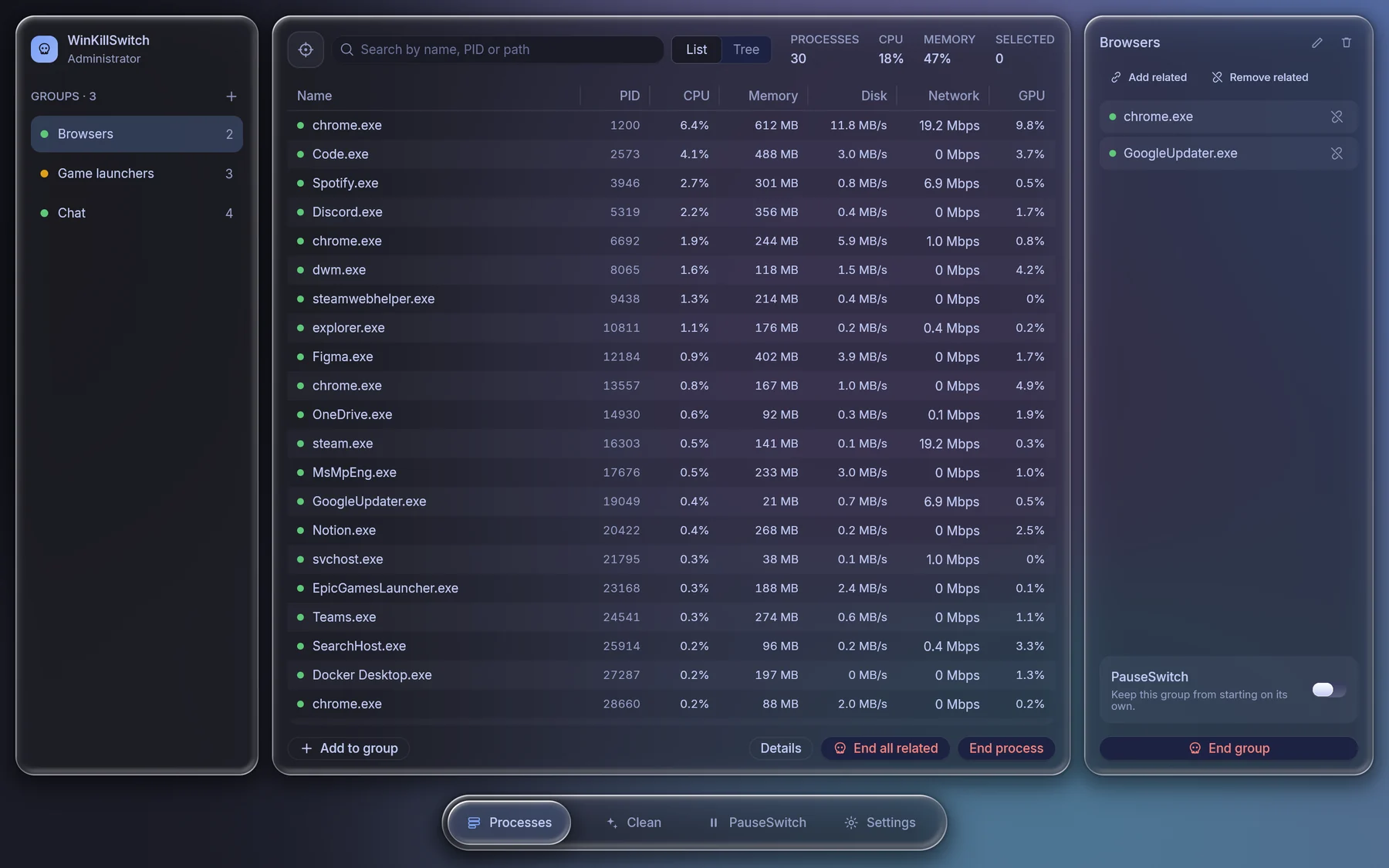
The process table refreshes every 1.5 seconds. It shows name, PID, CPU and memory by default, and a right click on the header adds more: type, status, publisher, description, command line, disk, network, GPU and the busiest GPU engine. GPU use comes from the same counters Task Manager reads. Network traffic comes from the same Windows event source Resource Monitor uses, which is why that column needs administrator rights.
The table can switch from a list to a tree, where every process sits under the one that started it. Reused process IDs are not mistaken for parents, and a search shows matches together with their parents.
Two shortcuts make it quick: Ctrl+Shift+K opens a quick palette from anywhere for processes, groups and commands, and a target next to the search box can be dragged onto any window to select the process that owns it.
Groups
Groups are the heart of it. I collect the processes of one thing (my browsers, game launchers, chat apps) into a group keyed by executable path, and the inspector shows which members are running right now. Groups are saved to %APPDATA%\winkillswitch with atomic writes. Every destructive action opens a confirmation sheet that lists each process it would touch, before anything happens.
Small tools that answer one question
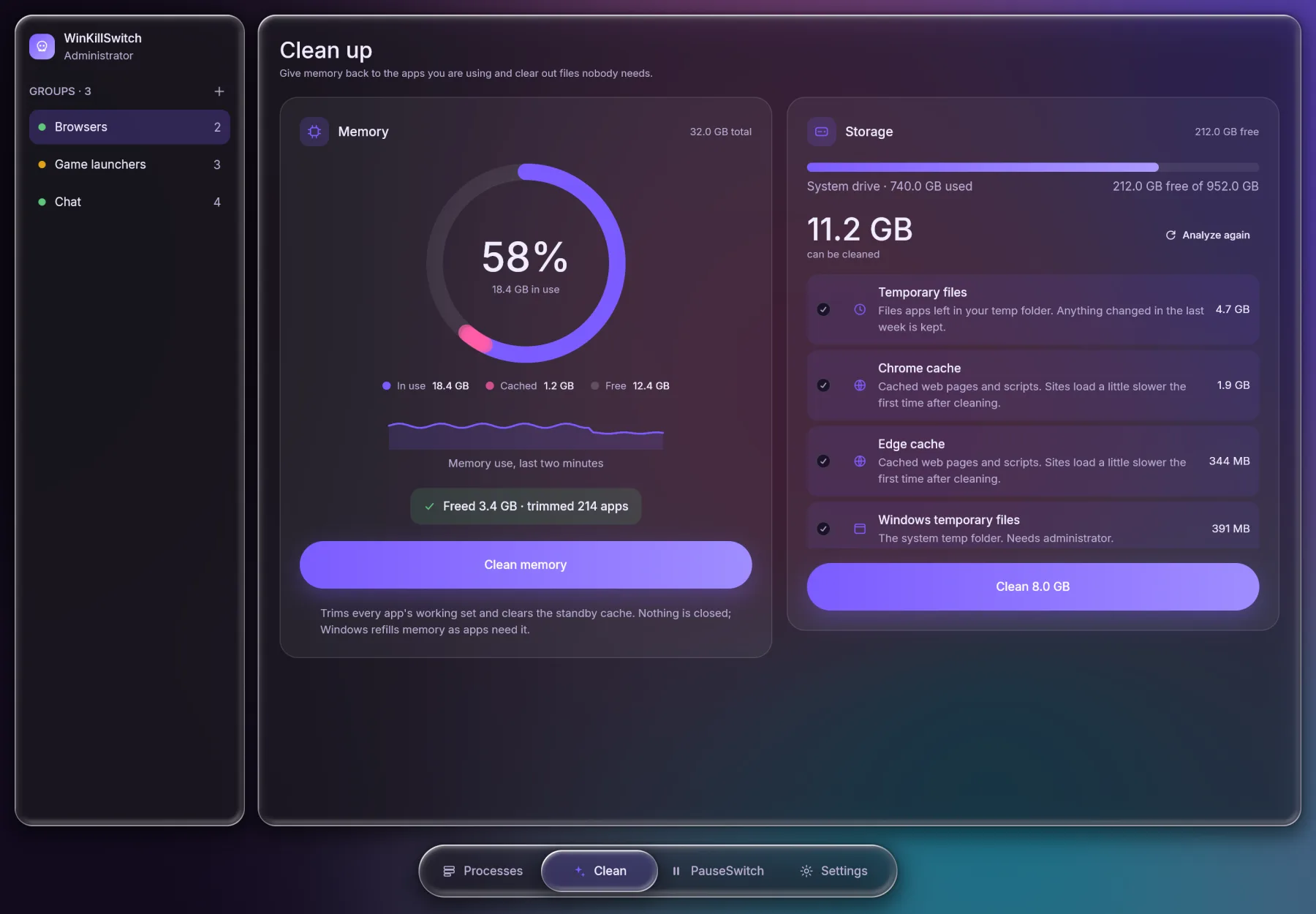
Around the process table I added tools that each answer one question, in plain words.
- Clean memory trims every app's working set and, as administrator, clears the standby cache. Nothing is closed, and it shows exactly what it freed.
- Analyze disk finds temporary files, browser caches, crash dumps and update leftovers. Safe categories start ticked, the Recycle Bin starts unticked, and it never follows links, never deletes the folders themselves, and keeps temporary files changed in the last week.
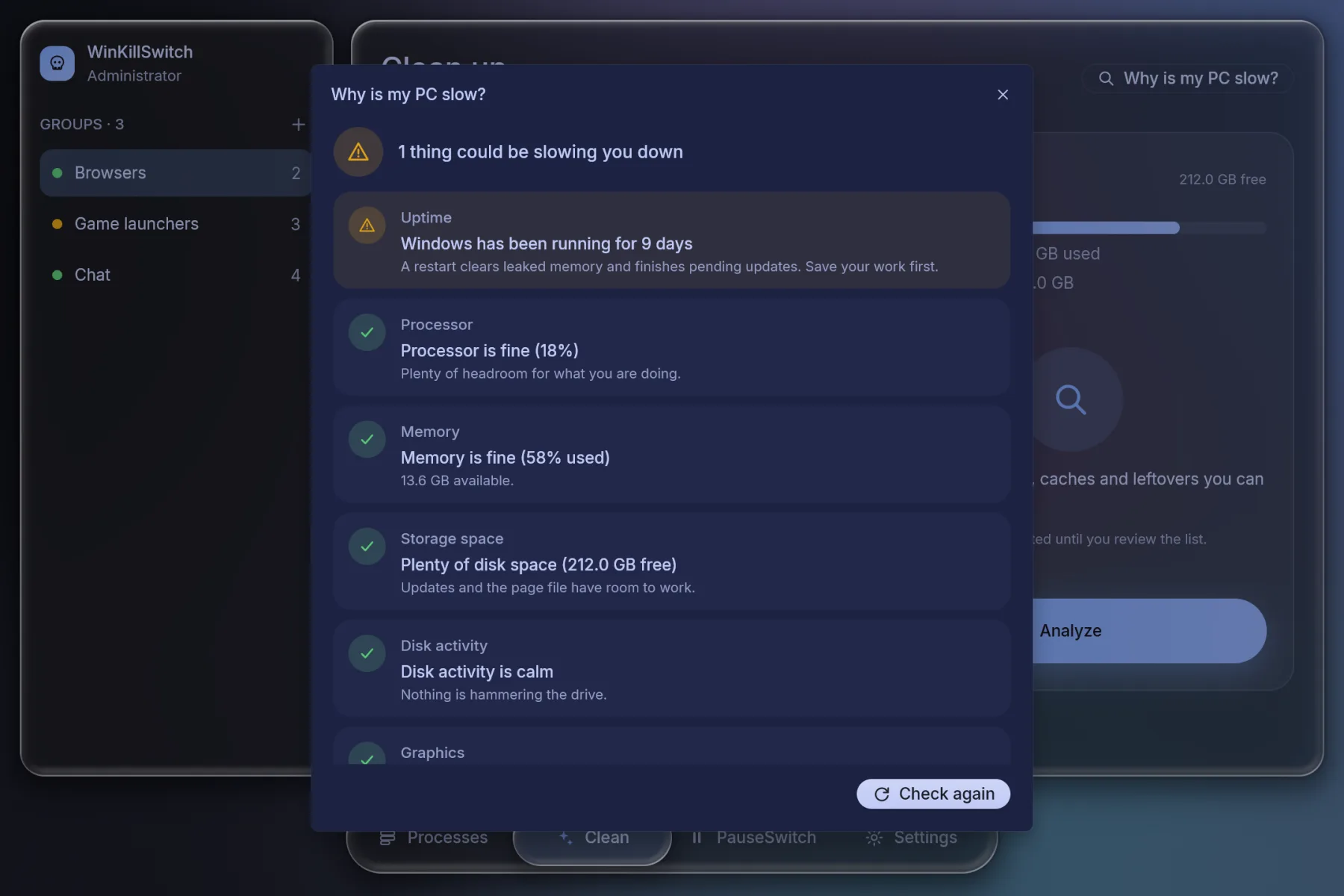
- Why is my PC slow? watches the machine for about five seconds and answers worst first: processor, memory, disk space, disk activity, graphics and uptime. It names the process behind a problem and puts the fix one click away.
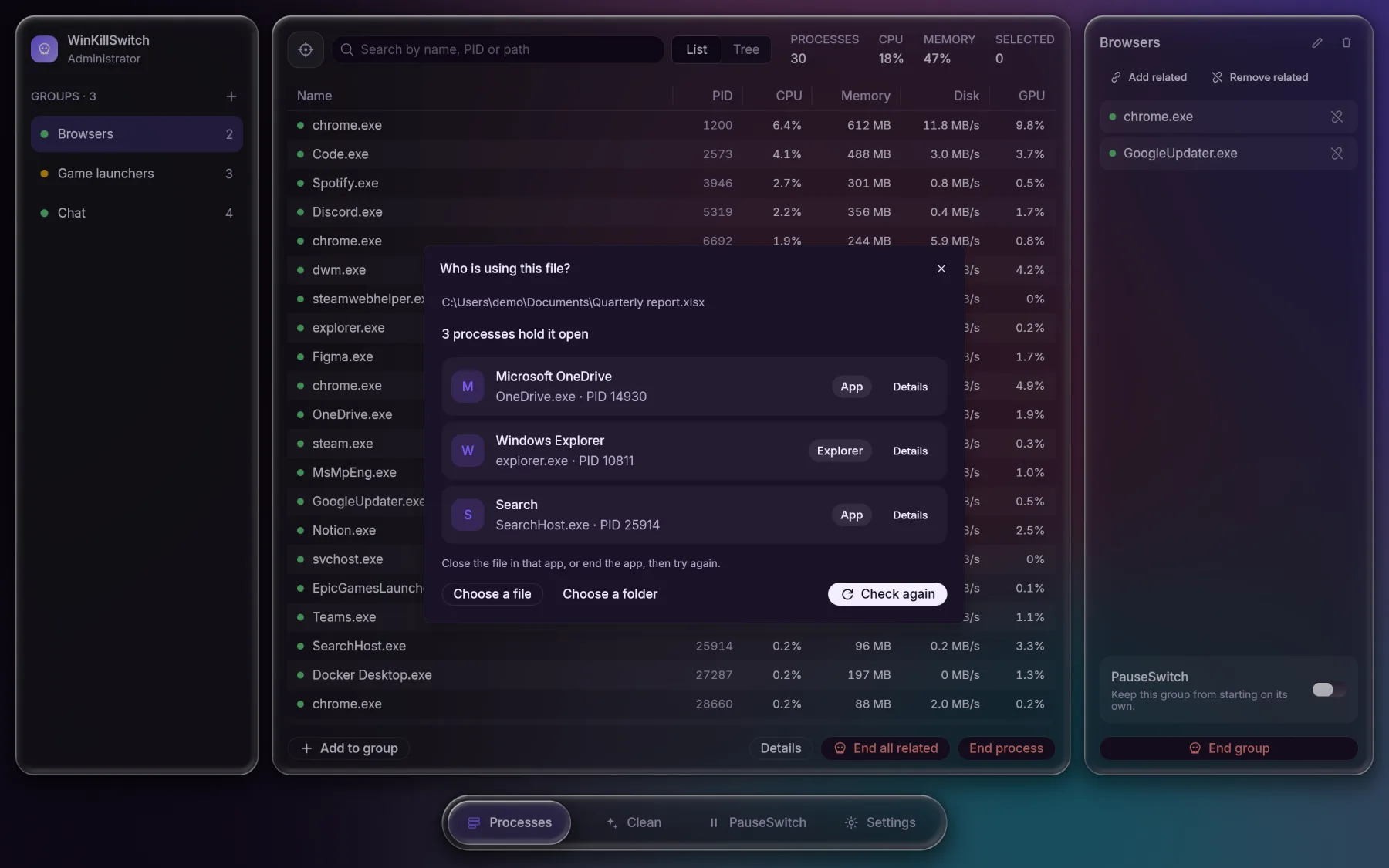
- Who is using this file? Drop a file or folder on the window and it lists every app holding it open, through the Restart Manager API that PowerToys File Locksmith also uses.
- About this process explains what a process is, verifies its signature, and when WinKillSwitch cannot manage it, says why.
Limits instead of killing
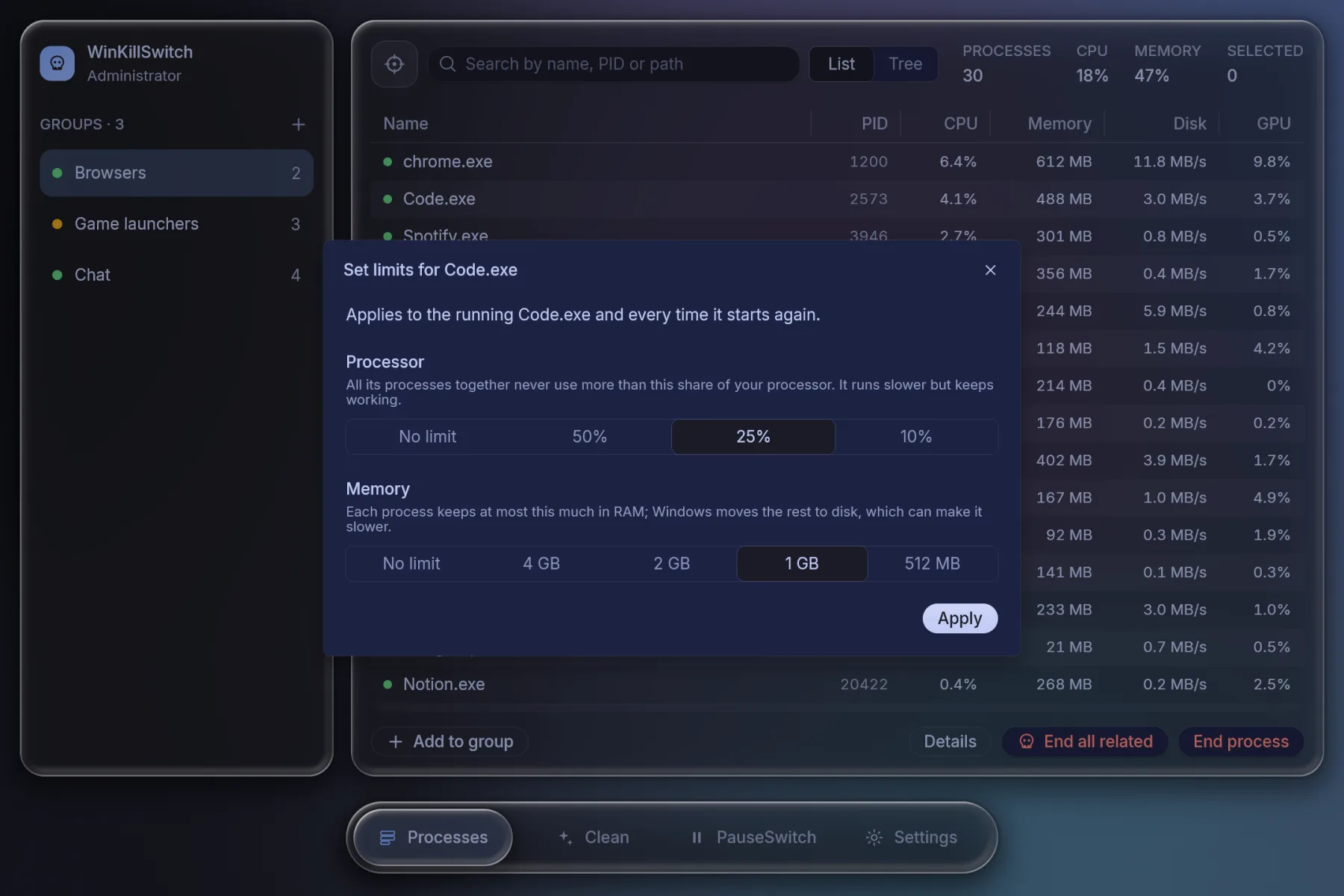
Sometimes I don't want an app gone, I want it quieter. A program can be capped at 50, 25 or 10 percent of the processor, and at 4 GB down to 512 MB of memory per process. The processor cap covers all of the program's processes together through a Windows Job Object, so it only runs slower. The memory cap is a working set ceiling: Windows pages the rest out instead of failing allocations, so the program keeps running.
Limits and alerts can be saved as rule packs, plain JSON. Three come built in, each one switch in Settings: Gaming mode, Bloat blocker and Quiet laptop. This is the start of Gaming mode:
{
  "format": "winkillswitch-rules",
  "version": 1,
  "name": "Gaming mode",
  "limits": [
    { "name": "OneDrive.exe", "cpu": 10, "mem_mb": null },
    { "name": "Slack.exe", "cpu": 10, "mem_mb": 1024 },
    { "name": "Spotify.exe", "cpu": 10, "mem_mb": 512 }
  ]
}Turning a profile off removes exactly the rules it added and keeps any I changed since. An imported pack is checked first, so a bad file never half applies.
The glass
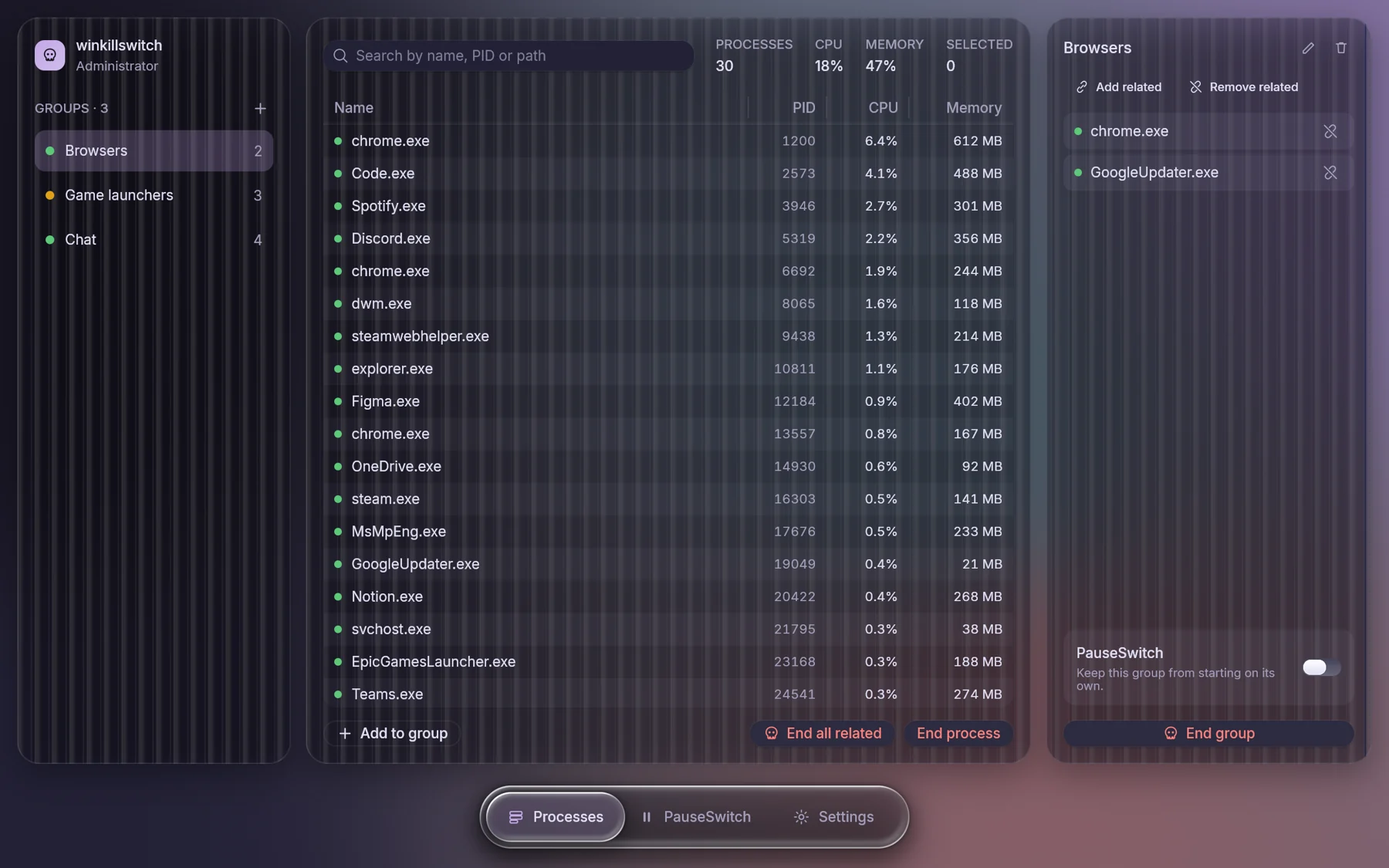
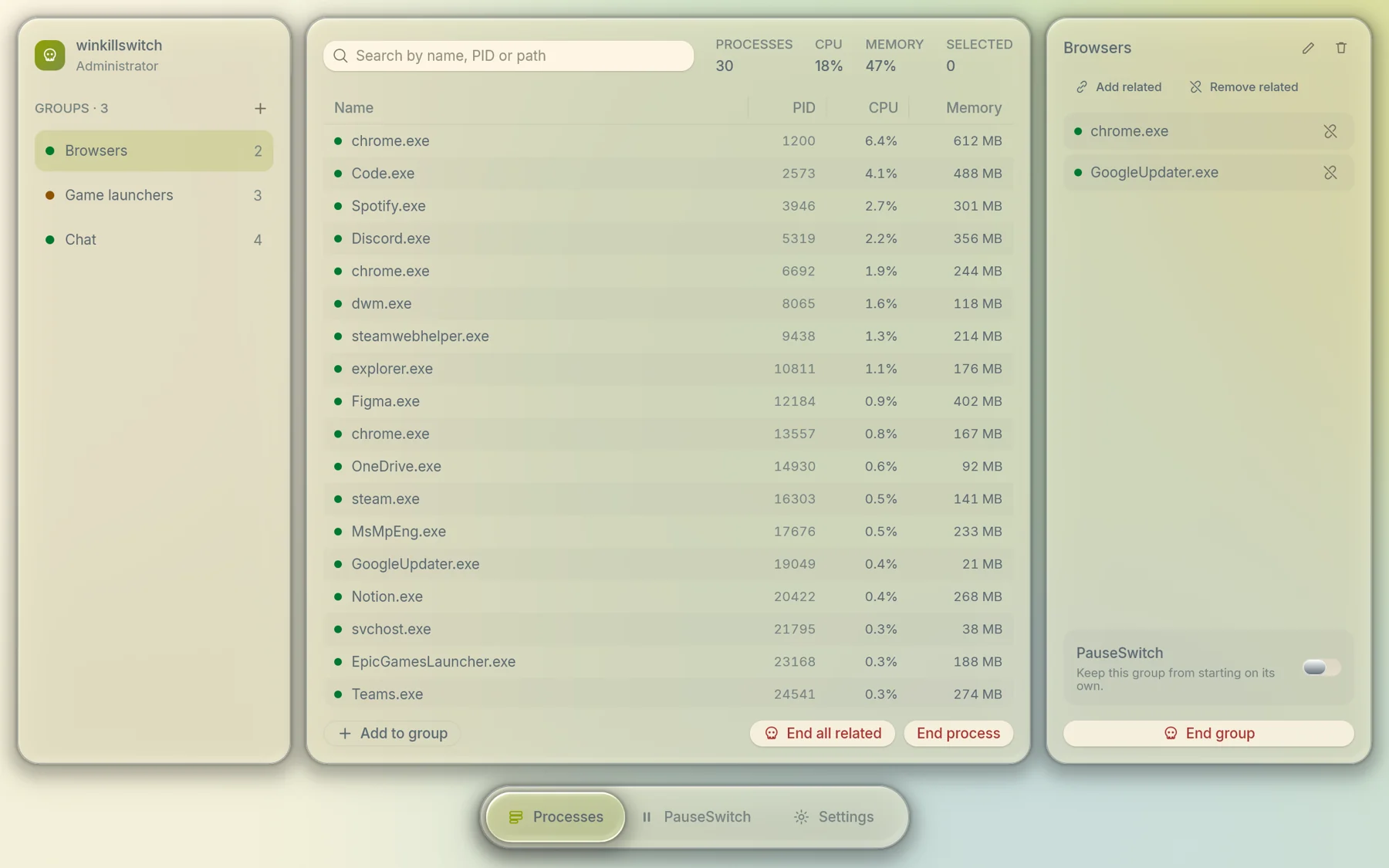
I also wanted a system tool that is pleasant to look at. The panels are real glass from rune-fx, refracting a live gradient tinted toward the palette, in three styles: liquid, fluted and frosted. There are six palettes with their official light and dark sides: Rune Aurora, Catppuccin, Rosé Pine, Tokyo Night, Kanagawa and Everforest. The selection in the floating tab bar springs between tabs, and the animated background can be switched off to keep the GPU idle.
What does not work yet
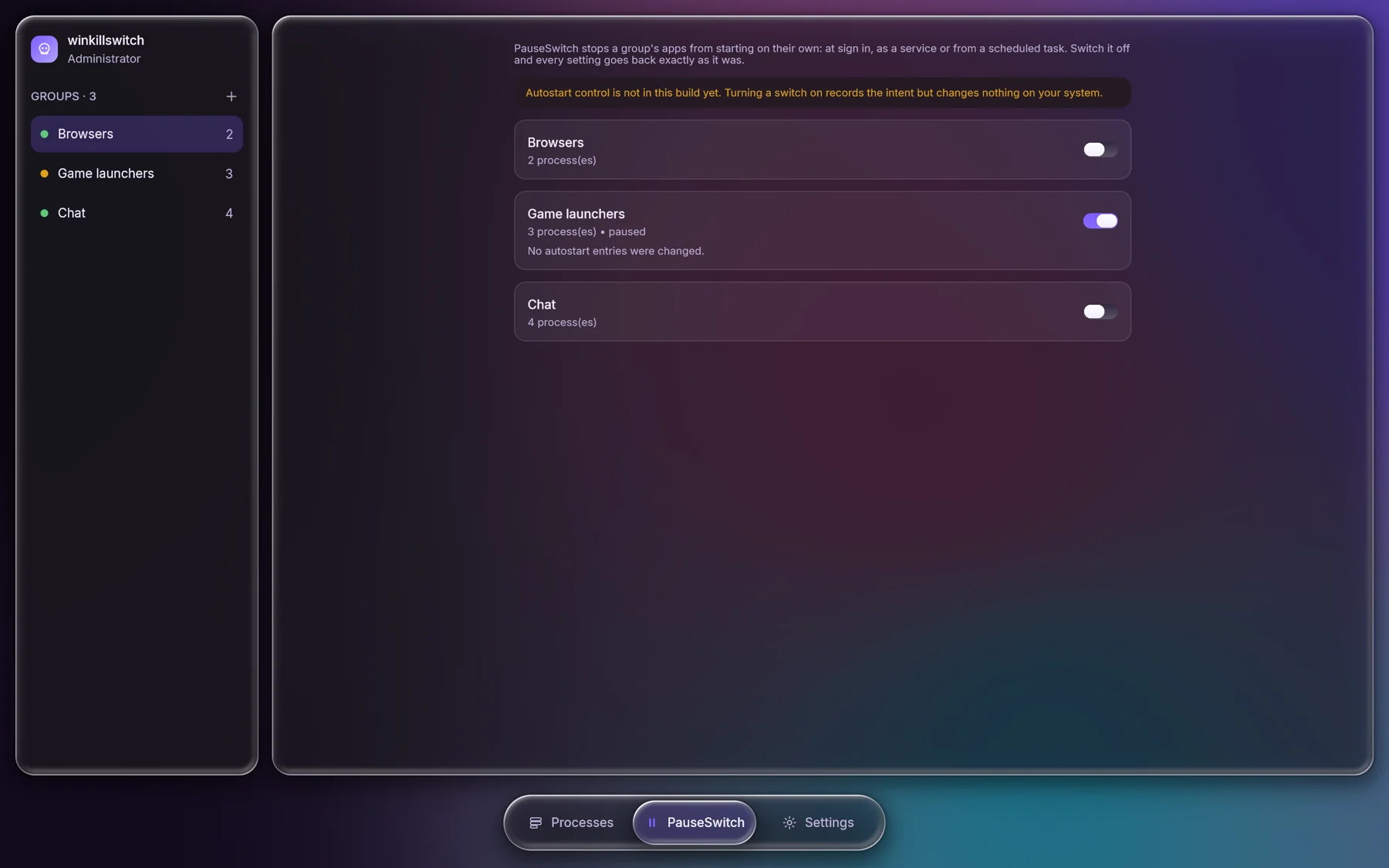
The name promises a kill switch, and that part is still a stub. Ending a process, ending everything related to an app, the guard that keeps it closed and PauseSwitch's autostart changes are designed behind interfaces in src/sys and wired into the UI. In this build they do nothing and say so:
//! Ending processes.
//! NOT IMPLEMENTED in this build: `end_all` ends nothing and reports every pid as failed.
pub const AVAILABLE: bool = false;I would rather the buttons say so than pretend. The only things that change your system today are the ones you start yourself: cleaning memory or disk, and limits. The "Starts with Windows" view lists every autostart entry, flags unusual ones like a changed Winlogon shell, and only reads.
Next on the roadmap: ending processes gracefully before forcing them, the PauseSwitch backend that restores every setting exactly when switched off, and signed releases with a winget package.
How it is built
It is plain Rust, about 9,000 lines. Rune lays out the interface, animates it on springs and draws it with wgpu; this project pins an exact Rune commit because Rune has no tagged releases yet. sysinfo samples the processes and windows-sys covers the rest: ETW for network, PDH counters for GPU, Job Objects for limits, Restart Manager for file locks.
Rune can also render the app headless, so every screenshot in this post comes from a built in demo machine, not a real process list:
cargo run --release -- --scene demo --snap shot.png --theme dark --size 1440x900 --scale 2The research behind the roadmap is in the repo too: 50 feature ideas, each scored by impact, effort and urgency. From v0.3.1 to v0.3.12, each release added one feature. There is also an agent setup guide in the repo, so a coding agent can install the latest release, verify it and report back without reading the whole README.
Try it
Download WinKillSwitch.exe from the latest release. It is a single portable file: no installer, no runtime, no administrator rights needed to run, and it writes nothing outside %APPDATA%\winkillswitch. Each release lists the file's SHA-256. The binary is not code signed yet, so SmartScreen may warn on first launch: choose More info, then Run anyway. To build it yourself:
git clone https://github.com/Ege-BULUT/WinKillSwitch.git
cd WinKillSwitch
cargo run --releaseThe first build compiles Rune and its GPU stack from source and takes a few minutes. Bug reports and pull requests are welcome; for UI changes, before and after screenshots help a lot.
 Project · Nov 27, 2026WindySync: Sync Your Windows setup across your PCs with your custom configurations.
 Project · Nov 27, 2026AnySync: NextGen OS Synchronization Between Every Operating System.
 Project · Nov 27, 2026MacySync: Got fresh mac but feeling lazy to carry everything there? Dont worry we cover you for free!