Projectrustwindowsopen-sourceagentssyncEnglishTürkçe
WindySync: Sync Your Windows setup across your PCs with your custom configurations.
A new PC arrives clean. The editor settings, SSH keys, PowerShell profile, bookmarks and the long tail of tools from winget and Scoop all have to come back by hand. WindySync moves them from one Windows PC to another, straight across and end-to-end encrypted, and leaves a brief for an AI agent to finish the job.

7 min read
 Project · Rust · Windows · Open source
Moving to a new PC without starting over
A new PC arrives clean. The editor settings, SSH keys, PowerShell profile, bookmarks and the long tail of tools from winget and Scoop all have to come back by hand. WindySync moves them from one Windows PC to another, straight across and end-to-end encrypted, and leaves a brief for an AI agent to finish the job.
The short version and all the links
- WindySync moves a working setup from one Windows PC to another: git config, SSH and GnuPG keys, the PowerShell profile, editor settings, bookmarks, your folders, and the lists of what winget and Scoop installed.
- The two PCs meet in a private GitHub repo of yours. Only the handshake goes there, sealed. The files go straight from PC to PC over your network, end-to-end encrypted.
- Either PC sends or receives, chosen per transfer. The sender offers a tree, the receiver ticks what it takes, and only the ticks travel. A cut connection asks again for what is missing.
- Everything lands where Windows keeps it on the new PC, whatever the user is called there. Then the receiver writes
GOAL.md, a brief your AI agent follows to finish the setup. - Free and open source (MIT), one
.exewith a window and a command line, for Windows 10 and 11. Version 0.1.0, the first release.
- Websitewindysync.vercel.app
- Downloadwindysync-windows-x64.exe
- SourceGitHub repo
- DocsHow it works
- FeaturesEverything it moves
- ChangelogWhat changed
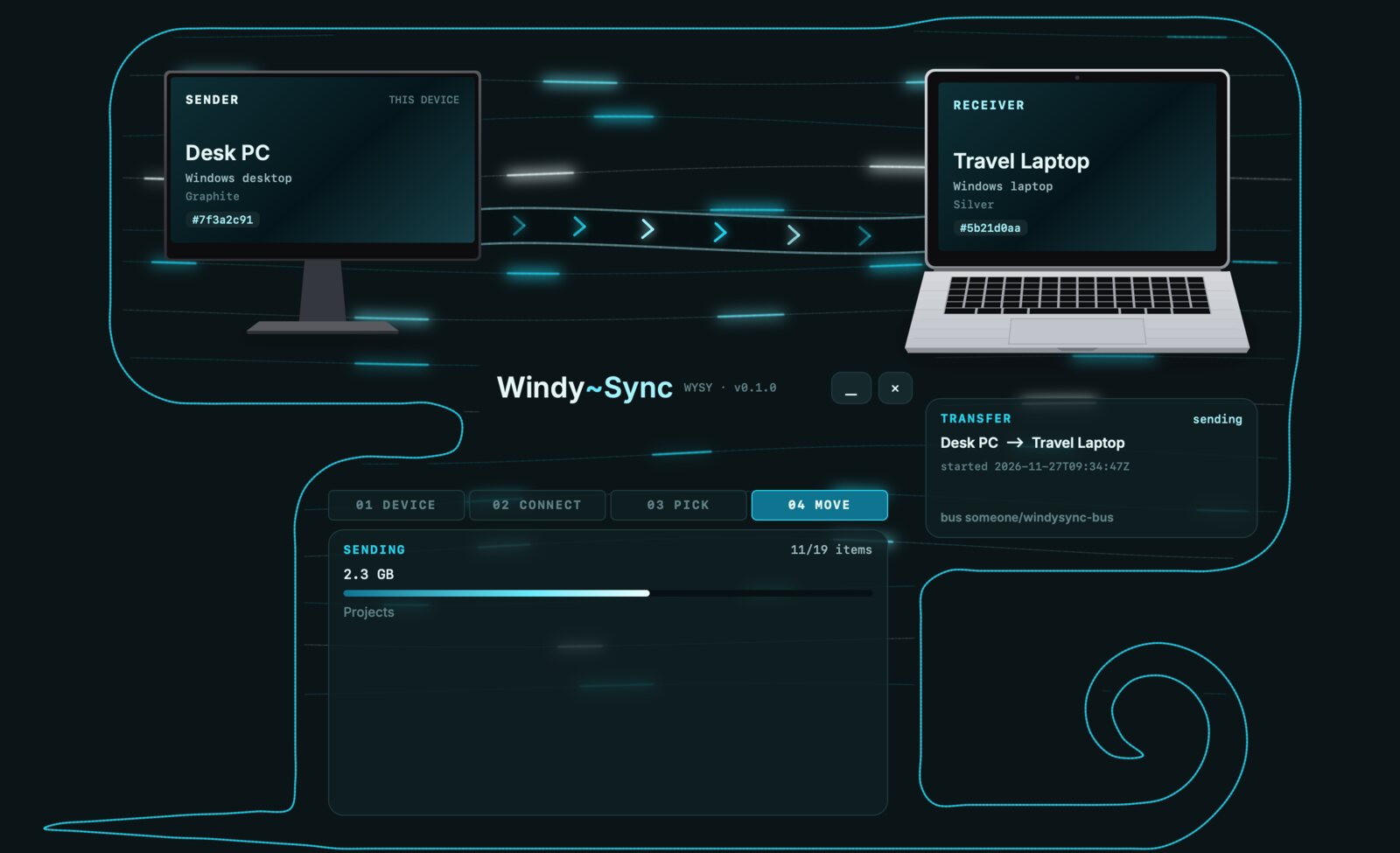
The problem
Windows keeps a working setup in a lot of places. VS Code's settings are under %APPDATA%, browser bookmarks under %LOCALAPPDATA%, the PowerShell profile in Documents\PowerShell, keys in %USERPROFILE%\.ssh. The programs themselves came from winget, Scoop, npm and one installer after another.
A new PC means finding all of that again. And the new PC often has a different user folder, C:\Users\ege on one and C:\Users\ege.b on the other, so even configs copied by hand point to a home that isn't there.
Two PCs, one private repo
WindySync is the Windows member of a small family of apps that move a setup between computers. On first run it gives the PC a random eight digit id, a key pair and a look, keeps them in %APPDATA%\windysync, and makes a private repo on your GitHub account, <login>/windysync-bus. Each PC registers there with its public key.
you/windysync-bus/                private
├── devices/
│   ├── 7f3a2c91.json             name, system, look, public key
│   └── c04e19b7.json
├── requests/                     send or receive, to approve
└── transfers/
    └── 20261126-1605_7f3a2c91_c04e19b7/
        ├── session.json          progress
        ├── offer.sealed          what the sender offers
        ├── picks.sealed          what the receiver takes
└── key.sealed stream key and addressGitHub only introduces the two PCs. The offer, the picks and the stream key are sealed to the other PC's key before they are written, so the repo holds nothing readable about what you move, and your files never go there at all. WindySync doesn't keep a GitHub login of its own: it asks the GitHub CLI for it each time.
Find, ask, pick
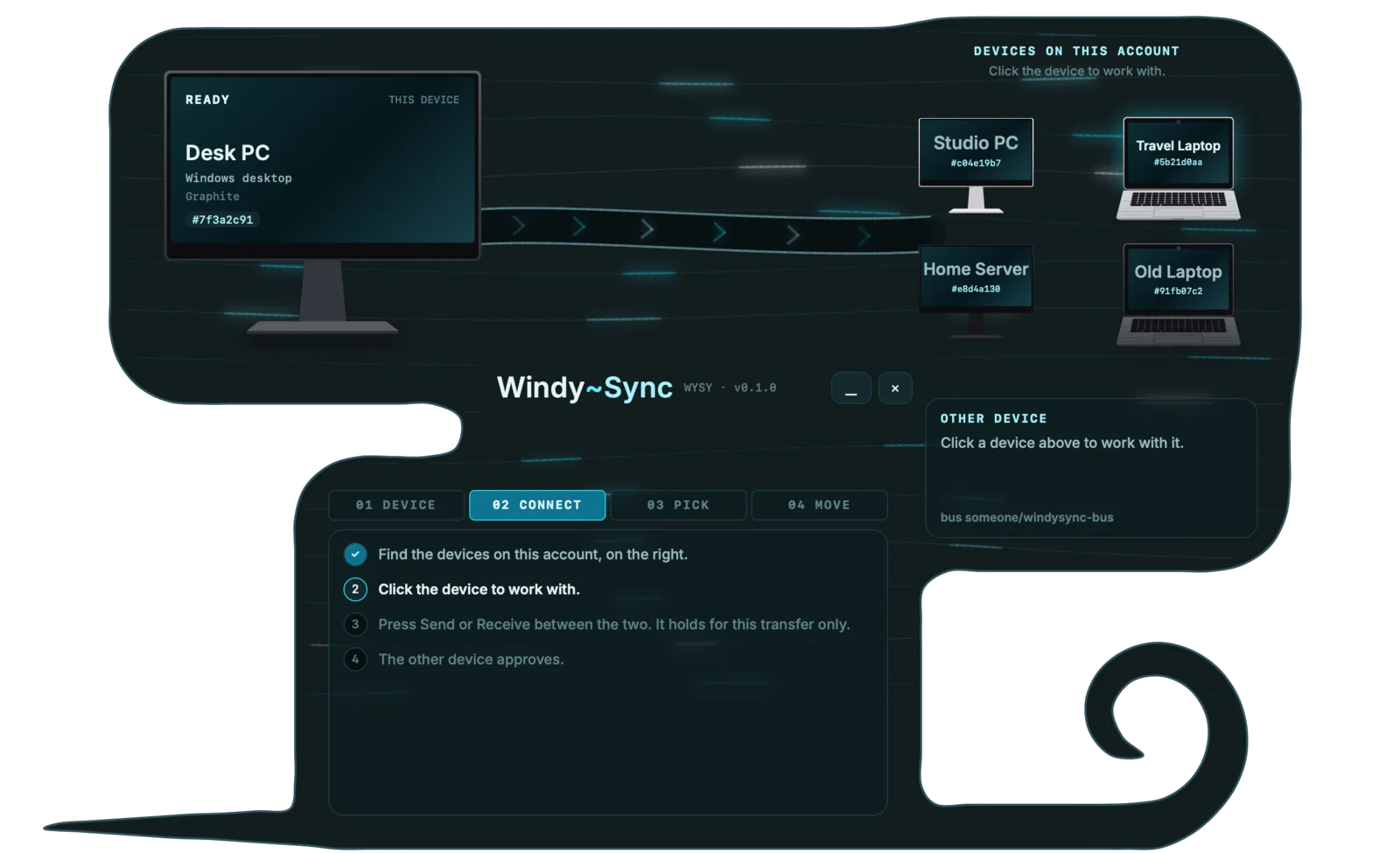
Each PC draws itself. On the Device tab you name it and choose a desktop monitor or a laptop, in graphite, black, silver or white. The drawings are original shapes, with no company logos.
On the Connect tab, Find devices on this account lists the other PCs. Click one, then press Send or Receive, the way you would in a remote desktop app. There is no fixed sender: the direction holds for this transfer only, and the other PC shows a request its owner approves or declines before anything moves.
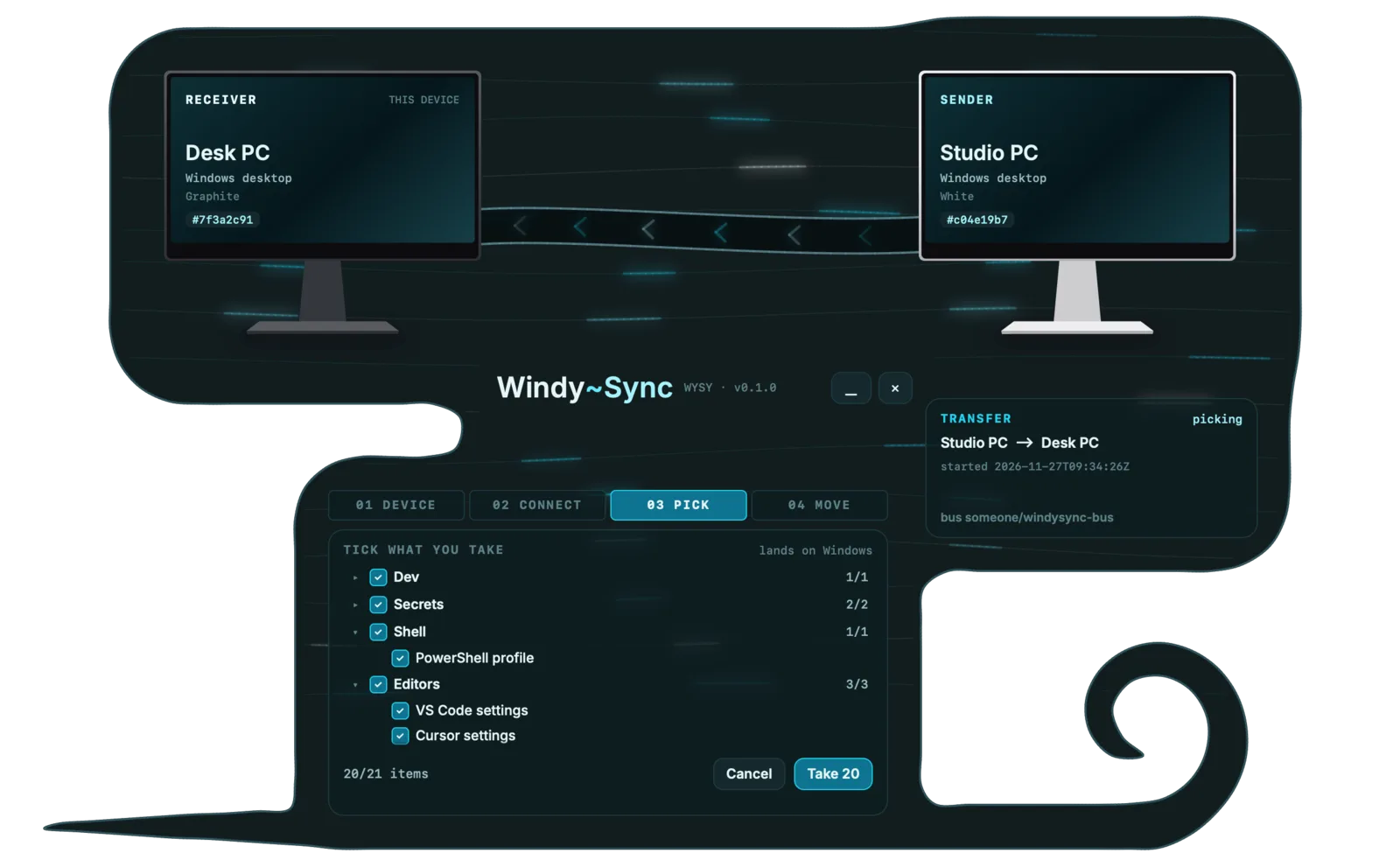
Then the sender scans what it has and offers it as a tree grouped by kind. Each item says where it will land on the new PC. Ticking a group ticks everything in it, and only the ticked items travel.
It lands where Windows keeps it
Every item has a logical id, like editors/vscode, and its paths under Windows' own folders: %APPDATA%, %LOCALAPPDATA% and %USERPROFILE%. Those are read on each PC, so a different user name on the new PC changes nothing. The sender packs each item under its id, and the receiver unpacks into a staging folder and moves each part to the same place under its own user.
| Item | Lands at | Then |
|---|---|---|
| VS Code settings | %APPDATA%\ | extensions reinstall from the list |
| PowerShell profile | %USERPROFILE%\ | placed as it was |
| GnuPG | %APPDATA%\ | placed as it was |
| Edge bookmarks | %LOCALAPPDATA%\ | quit Edge before placing |
| winget packages | lists\ | your agent runs winget import |
Whatever was already in place is kept next to it as <name>.before-windysync, so nothing on the new PC is lost. The full list today: Desktop, Documents, Downloads, Pictures, Music and Videos (each top-level item on its own), git config, SSH keys and config, GnuPG, the PowerShell profile, VS Code, Cursor and Zed settings, Wave's config, Obsidian's vault list, bookmarks of Edge, Chrome, Brave and Chromium, Claude Code's settings, skills, agents and commands, and Codex's config.
Straight across, and it picks up again
The files go over TCP between the two PCs, as tar inside an XChaCha20-Poly1305 stream under a random key that only those two know. Every frame is authenticated, so a wrong key gets nothing, and a cut stream fails instead of quietly ending early.
A minute without a byte counts as a cut. The receiver then asks again for whatever has not arrived, up to 20 times, so a dropped connection costs the item in flight and not the whole move. Folders that get rebuilt from source, like node_modules, target, .venv and __pycache__, stay behind when they sit in your own folders. For now the two PCs need to be on the same network, so they can reach each other directly.
Programs travel as lists
Programs aren't copied. Each package manager on the old PC writes down what it installed, and that text goes across for the new PC to install from:
| List | Made with | Installed with |
|---|---|---|
| winget | winget export | winget import -i |
| Scoop | scoop export | Scoop |
| VS Code and Cursor extensions | code --list-extensions | code --install-extension |
| npm, cargo, pipx | npm ls -g, cargo install --list, pipx list | npm install -g, cargo install, pipx install |
A brief your agent finishes
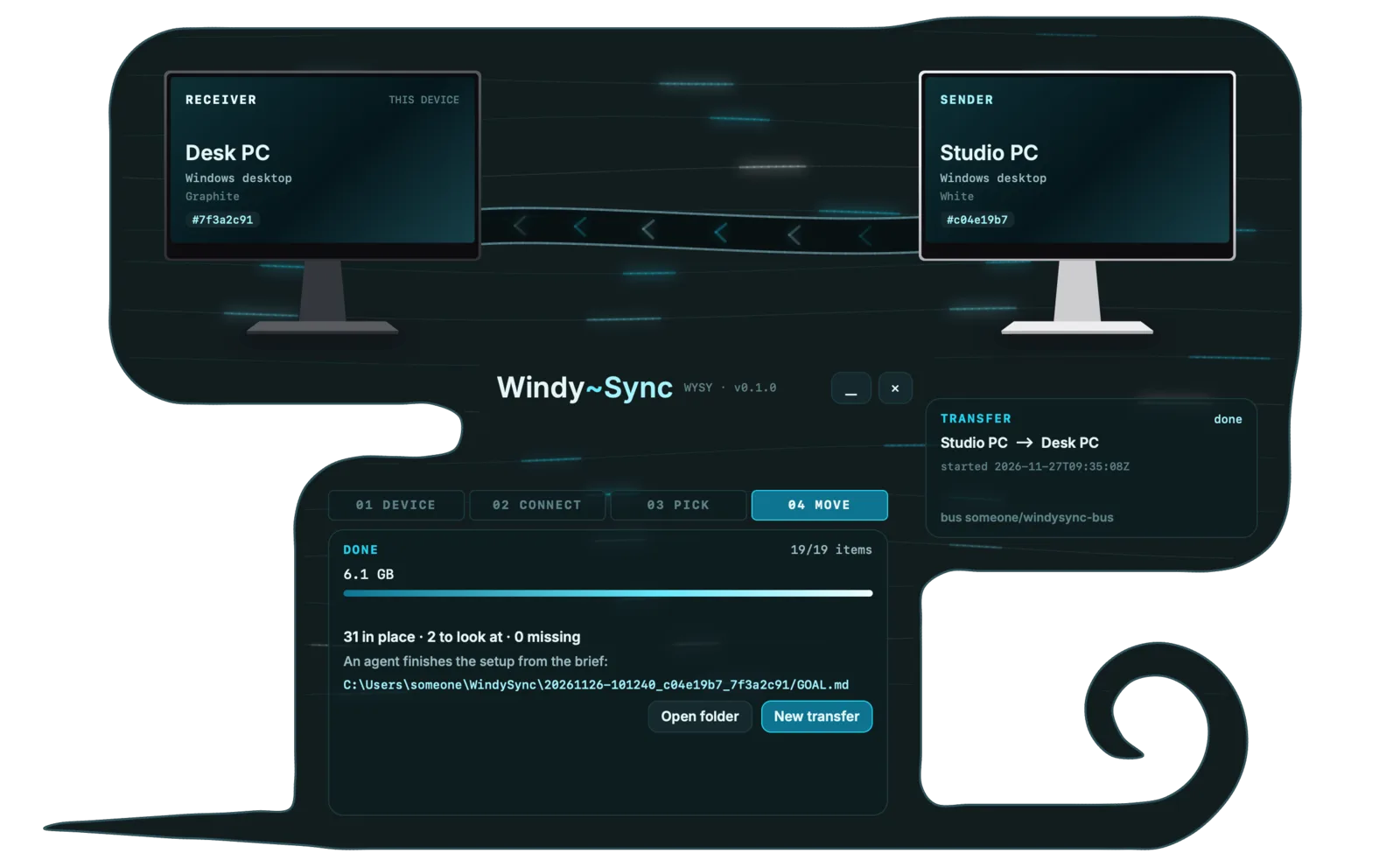
Copying files is the easy half. The other half is judgement: a config that still names the old user folder, an extension list to reinstall, a winget export to import. So when everything is in place, the receiver writes GOAL.md into the transfer's folder, %USERPROFILE%\WindySync\<transfer>. It lists every item, where it landed, any problems, a note on what is left for each, and, when the user folder has another name, which paths to rewrite. The lists sit next to it in lists\.
Hand it to whichever agent you use, from PowerShell:
cd $HOME\WindySync\<transfer>; claude "Read GOAL.md in this folder and do what it says."winget import -i lists\winget.txt brings back what winget installed. The brief ends with what "done" means: every item works, or is in TODO-FOR-YOU.md with steps, and REPORT.md says what was done per item.
What stays behind
- The programs themselves. They are installed again from the winget and Scoop lists, not copied.
- Passwords saved in browsers. Windows seals them with DPAPI for the old PC's account, so only bookmarks move. Use the browser's own sync, or its password export.
- Windows settings, the registry and the PC's identity: a Tailscale node, remote desktop ids and the like.
- Logins. AI tools and apps are signed in again on the new PC.
- Anything you leave unticked.
How it is built
WindySync runs the engine of AnySync, the family member that moves a setup between macOS, Windows and Linux, with one system: only Windows is in its list, so the window lists and draws only Windows PCs, and the command line refuses any other. Its siblings are MacySync for Mac to Mac and LinySync for Linux to Linux, and WavySync keeps Wave Terminal the same on every computer.
It is one Rust program. The window is drawn with Rune, shaped like a gust of wind that curls at its corner, in aqua, with lines in the background that run from the sender to the receiver. The same .exe works from a terminal:
windysync                            open the window
windysync --scan                     what this PC could send
windysync --give <id> [--only a,b]   ask PC <id> to receive, then send
windysync --accept [--only a,b]      approve the request waiting here, then do this side
windysync --id this PC's id, name and lookCI tests and builds it on Windows, and tagging a version makes the release.
Try it
Version 0.1.0 is the first release: one .exe for Windows 10 and 11 on x64, with the window and the command line together. It needs the GitHub CLI signed in (gh auth login) on both PCs. It is early, so reports from real moves are especially welcome on GitHub.
Run it on both PCs, pick the other one, and choose Send or Receive.
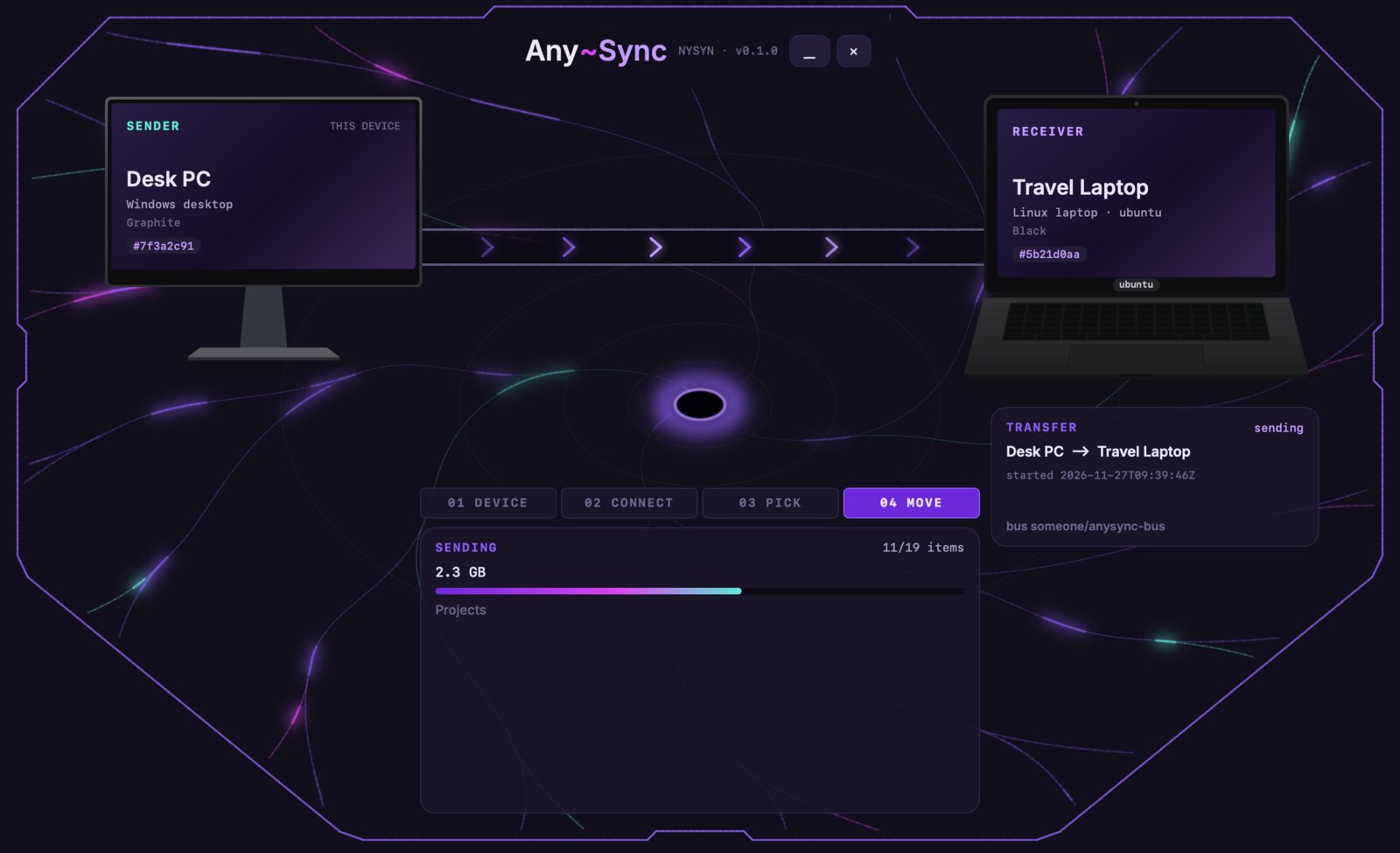 Project · Nov 27, 2026AnySync: NextGen OS Synchronization Between Every Operating System.
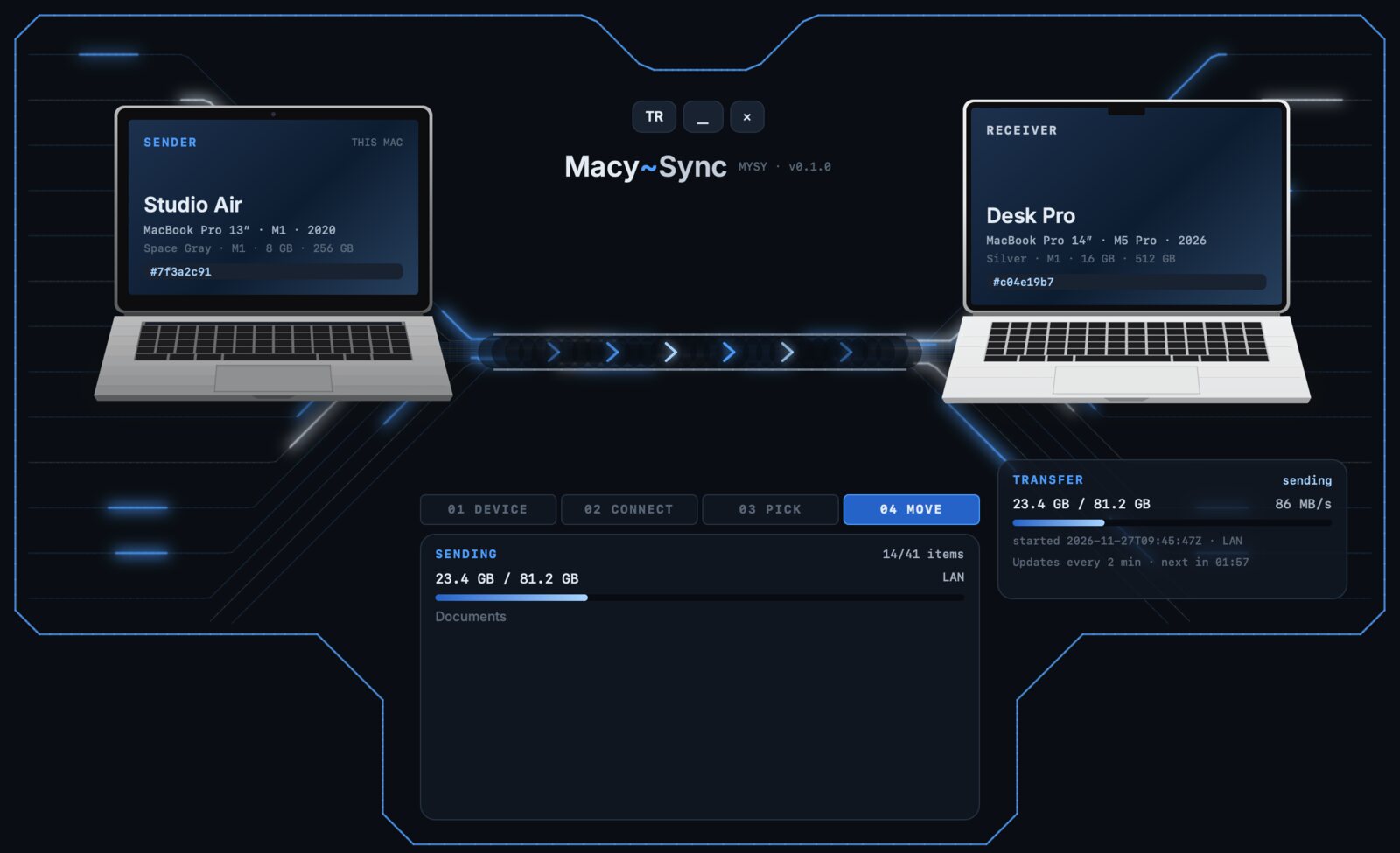 Project · Nov 27, 2026MacySync: Got fresh mac but feeling lazy to carry everything there? Dont worry we cover you for free!
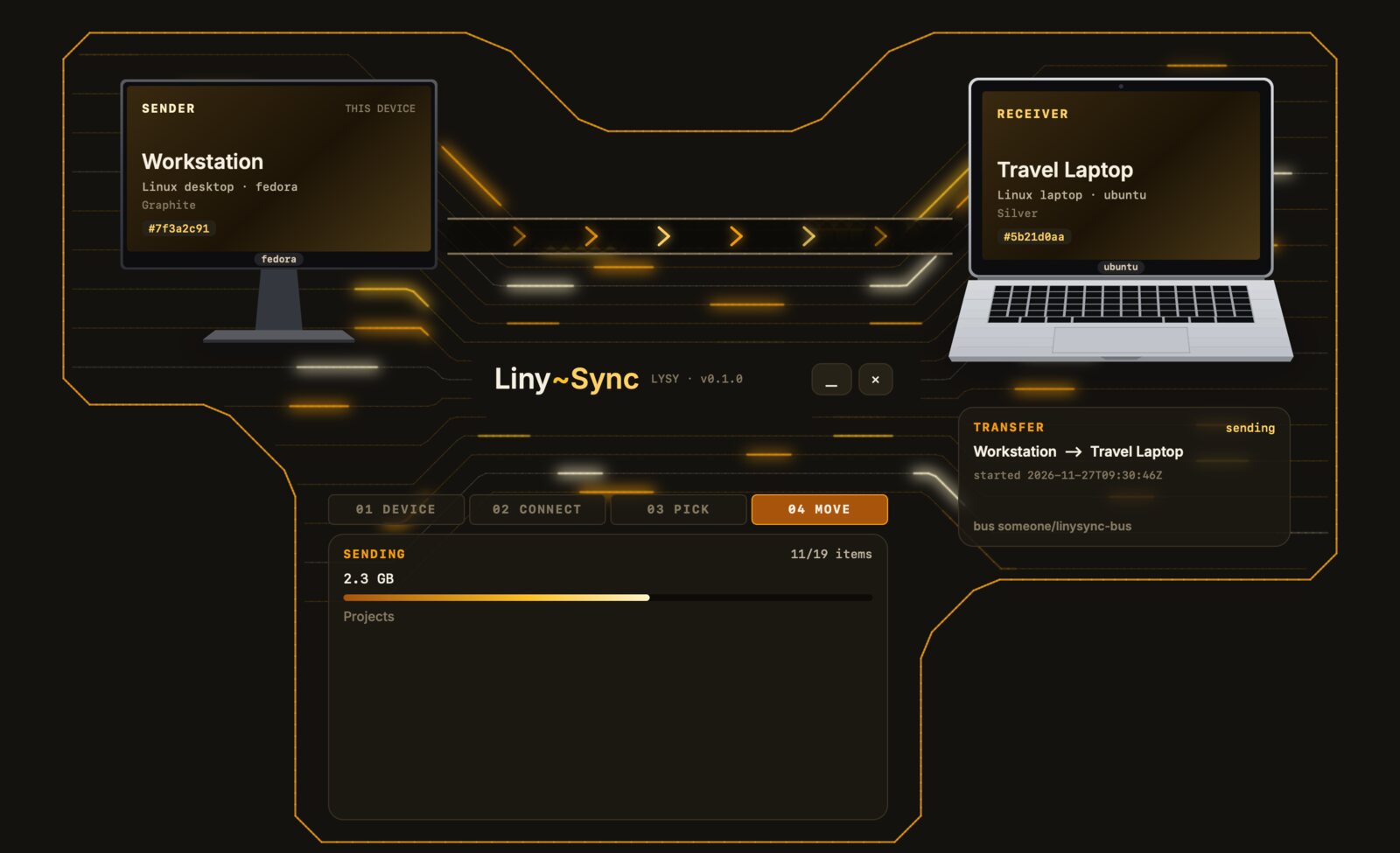 Project · Nov 27, 2026LinySync: Sync your Linux setup however you want with your other linux devices